Notifications
In any collaborative team environment, staying informed is the secret to staying ahead. Performance Notifications are your personal radar, designed to keep you updated on what's happening within your Performances without the stress of "inbox overload." By customizing these settings, you ensure you get the right information at the right time.
There are two main ways to manage your Performance notifications:
- System-Wide Notifications: These establish your default preferences for every Performance on which you have a Role.
- Individual Notifications: You can tailor the type of notifications for a single Performance without changing your global rules.
Types of Notifications Available
You can opt-in to receive any of the following notification types:
- creation of a new Event
- modification of an Event
- deletion of an Event
- Event marked done or undone
- creation of a new Timeline
- when a Timeline is put on or taken off hold
- changing the Role(s) of an existing Event
- creation of a new Note or Document
How Notifications Are Delivered
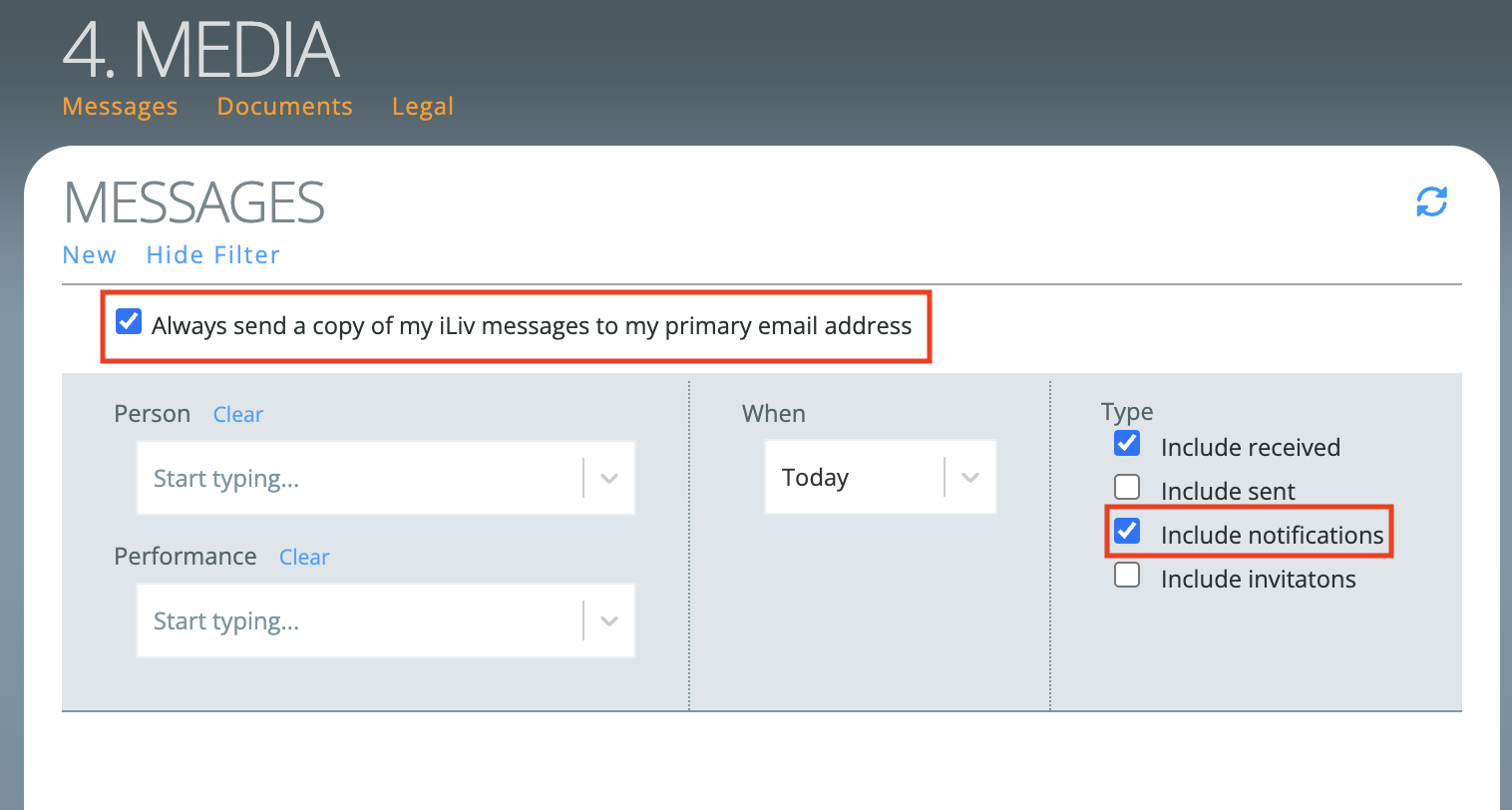
Your Performance Notifications can be found in your Messages inbox, located in the Media Pod (Pod 4). In your Messages filter bar, ensure that the checkbox for include notifications is checked.
If you would like to receive an email copy of your notifications in your email, you must check the box at the top of the pod.
Setting system-wide default Performance notifications
By default, notifications for Performance updates are turned off. However, if you have an active Role, you can choose to receive them.
You must have an active Role on the Performance to receive Performance notifications for that Performance.
To set your system-wide notifications for all of your Performances, navigate to the Community Pod (Pod 5), and click on Manage Performance Notifications. This will open the Performance Notifications foldout. Here you will find the list of notification options (as described above) and a set of checkboxes to select the ones you wish to receive.
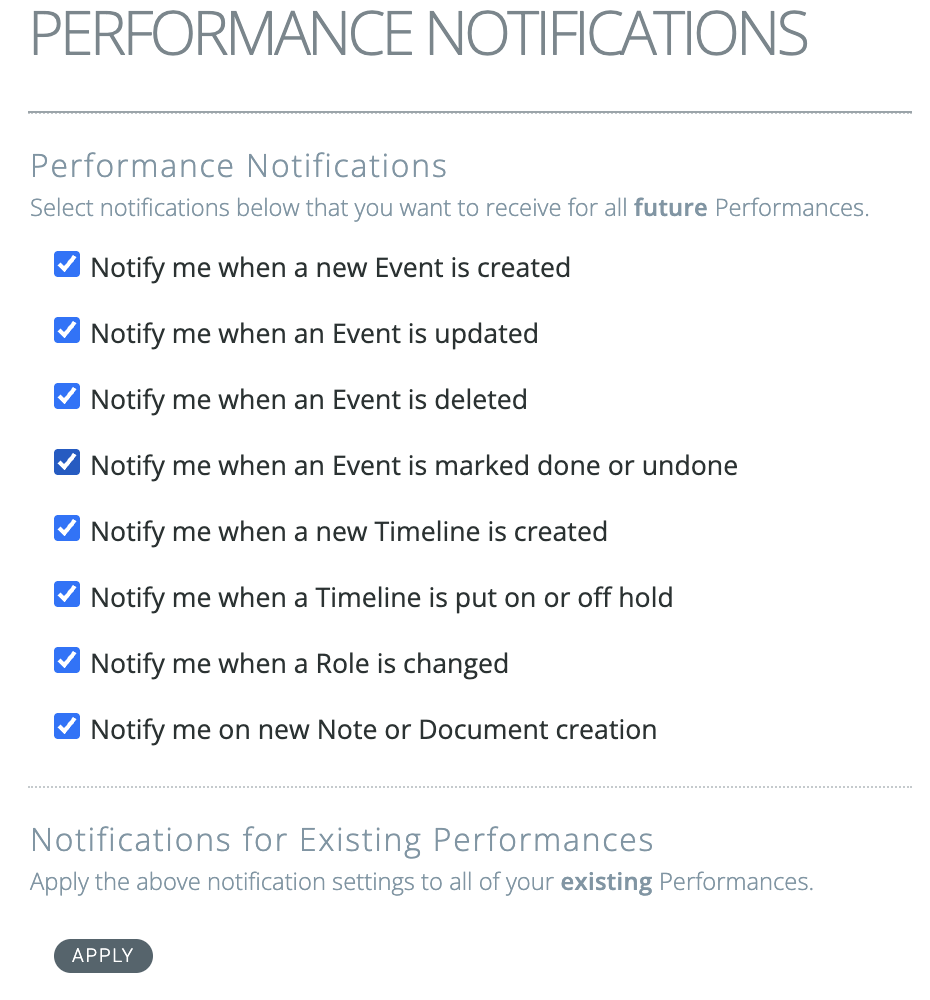
Any notification options you select here will apply to all of your future Performances, meaning Performances that you accept a Role on after making your notification selection changes. For Performances on which you already have a Role, your notification settings will not be affected, in case you have set specific preferences for certain Performances.
If you would like to apply these notification selections to all of your current Performances so that your notifications are identical, just click the Apply button in the section directly under the checkboxes.
Note: Clicking Apply will override any notification settings you have previously set up for individual Performances.
Setting notification options for an individual Performance
- Navigate to the Performance Pod (Pod 1) and open the foldout for the Performance for which you want to receive notifications.
- In the top menu of the Performance foldout, click on Notifications to open the Performance Notifications foldout.
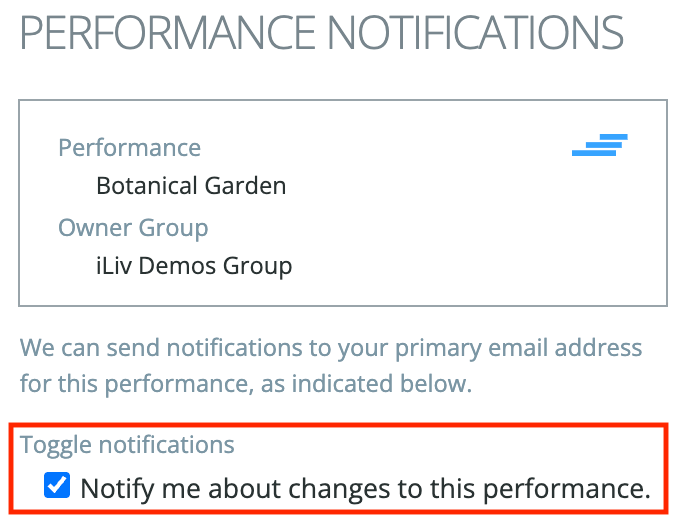
- Click the Toggle notifications checkbox to turn your notifications on, or to turn all notifications off if you no longer want to receive them. You can select specific notifications you’d like to receive about that particular Performance. You can temporarily turn them off, and any custom selections will remain saved in case you want to turn them on again later.