

Search
This guide will help you understand and utilize the powerful search features available to filter information across all Performances you are connected to. Our search tools allow you to create customized filters that can be as specific as you need, and even save these searches for future use or to generate reports.
Understanding Your Search Scope
When you perform a search, you can choose to focus on either Performances where you have an active role or Performances owned by any Groups you are a member of.
Note: The option for Performances owned by a Group you are a member of provides a broader set of results, and includes Performances regardless of your active role.
Building Your Search Expressions
Search parameters are the specific pieces of information you use to filter your results. They define what you are looking for. Most searches are built using an Expression Group, which involve three main fields:
- Field 1 (Category): Here, you select the category you want to search within (e.g., "Performance Role," "Event Attribute Label").
- Field 2 (Operator): This field defines the relationship or condition for your search. Common operators include:
-
- "LIKE": To find values that partially match your input.
-
- "=" (equal to): To find values that match your input exactly.
-
- "!=" (not equal to): To find values that do not match your input.
-
Field 3 (Value): This is where you enter the specific value you are searching for (e.g., "Admin").
Important Date Format Note: Dates must be entered in YYYY-MM-DD format.
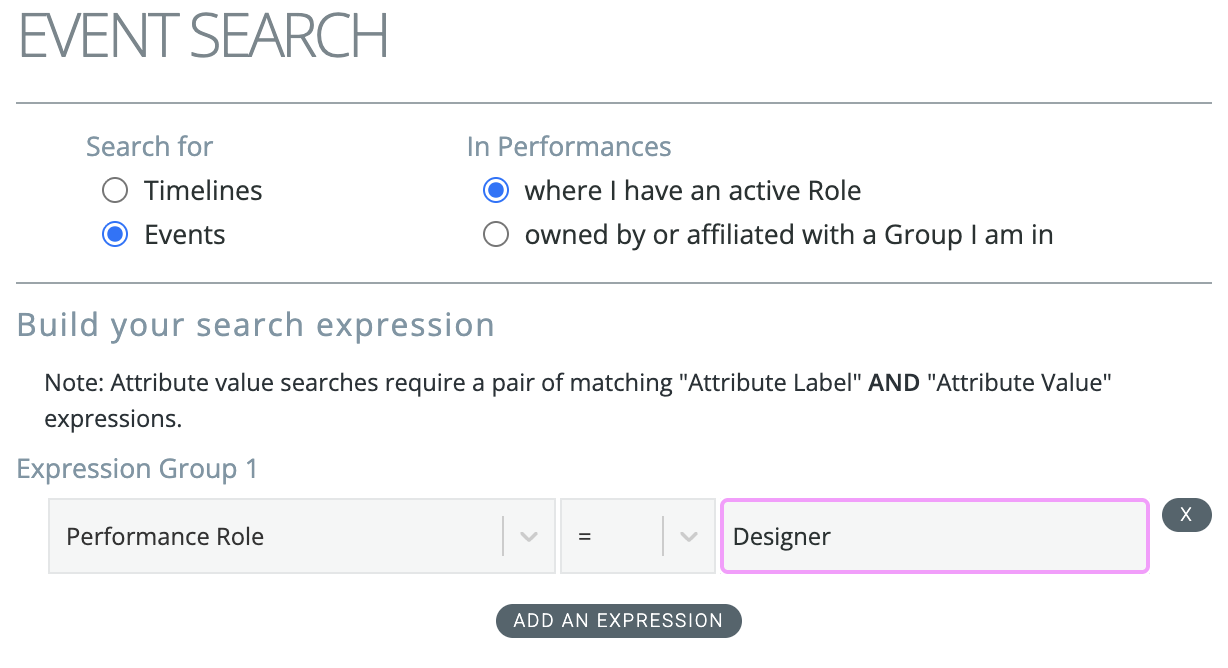
Example: To generate a list of all Performances that have a "Designer" role:
- In Field 1, select "Performance Role".
- In Field 2, select "=".
- In Field 3, enter "Designer".
Performance Search
The Performance Search tool is designed to help you quickly find a specific Performance or a set of Performances.
Where to Find It:
- Navigate to the Performance Pod (Pod 1).
- Click the "Search" menu button located just above the Performance Pod.
- In the Search foldout that appears, select the type of Performances you are looking for.
- Search results will be displayed directly in the Performance Pod list.
- To return to the default list of all Performances, click the "All" menu button at the top of the Pod.
- To clear the search form and start a new search, click the "New Search" button.
Event/Timeline Search
The Event/Timeline Search tool is used for finding specific Events or Timelines. This is especially useful when you need to search for something at a more granular level, such as a specific attribute.
Where to Find It:
- Navigate to the Time Pod (Pod 3).
- Click the "Search" menu button located just above the Time Pod; this will open the Search foldout.
- Choose whether to focus your search on Events or Timelines, then select the types of Performances you want to consider in your search.
- Search results will be displayed in the Time Pod.
- To return to the Performance view or the "What’s Next for Me" list, click the relevant menu button at the top of the Pod.
Note: Be aware that returning to a default view will discard your current search results. If you want to see them again, you'll need to click the "Search" button again in the Search foldout.
- To clear the search form and start a new search, click the "New Search" button.
Advanced Query: Attribute Searches
Searching for attributes is a specialized type of search that requires two search parameters to yield correct results. You must search for both an attribute label and its matching attribute value in your expression.
- In your first parameter line, select "Event Attribute Label" in the first field and fill out the remaining fields for the label you're seeking.
- Click "Add An Expression." This action will add an "AND" connector, followed by a second parameter line.
- In this new second parameter line, select "Event Attribute Value" in the first field and complete the rest of the line with the specific value you are looking for.
- If you are searching for a Timeline-level attribute, change the first fields to "Timeline Attribute Label" and "Timeline Attribute Value".
- For attribute searches, the results will include additional columns showing the matching attributes to the right of the default columns. You may need to scroll horizontally to see them.
Saving Your Searches
The Saved Search tool is incredibly useful for repeating searches frequently or for generating simple reports.
How to Save a Search:
- First, fill out all your desired search parameters as you would for any other search.
- Click the "Save Search" button located at the bottom of the form.
- You will then be prompted to add a descriptive name for your search.
- Once saved, your search's name will appear in the Saved Searches list below the search form.
How to Use a Saved Search:
- To run a saved search, simply click on its name in the Saved Searches list.
- This action will pre-fill all the search parameters for that specific search into the form.
- Finally, click the "Search" button to see the results.
- You have the flexibility to modify and re-save existing saved searches if your needs change, or to delete them if they are no longer required.
Example: If you want to generate a weekly report of events marked done within the past 7 days, your search parameters would be:
- Line 1: Event is Done = TRUE.
- Line 2: Event Done Date > YYYY-MM-DD (e.g., 2025-07-01 to represent a date within 7 days of today).
Each week, you would only need to change the date field in the second line to reflect the current 7-day period, then click "Search".